
Descrição
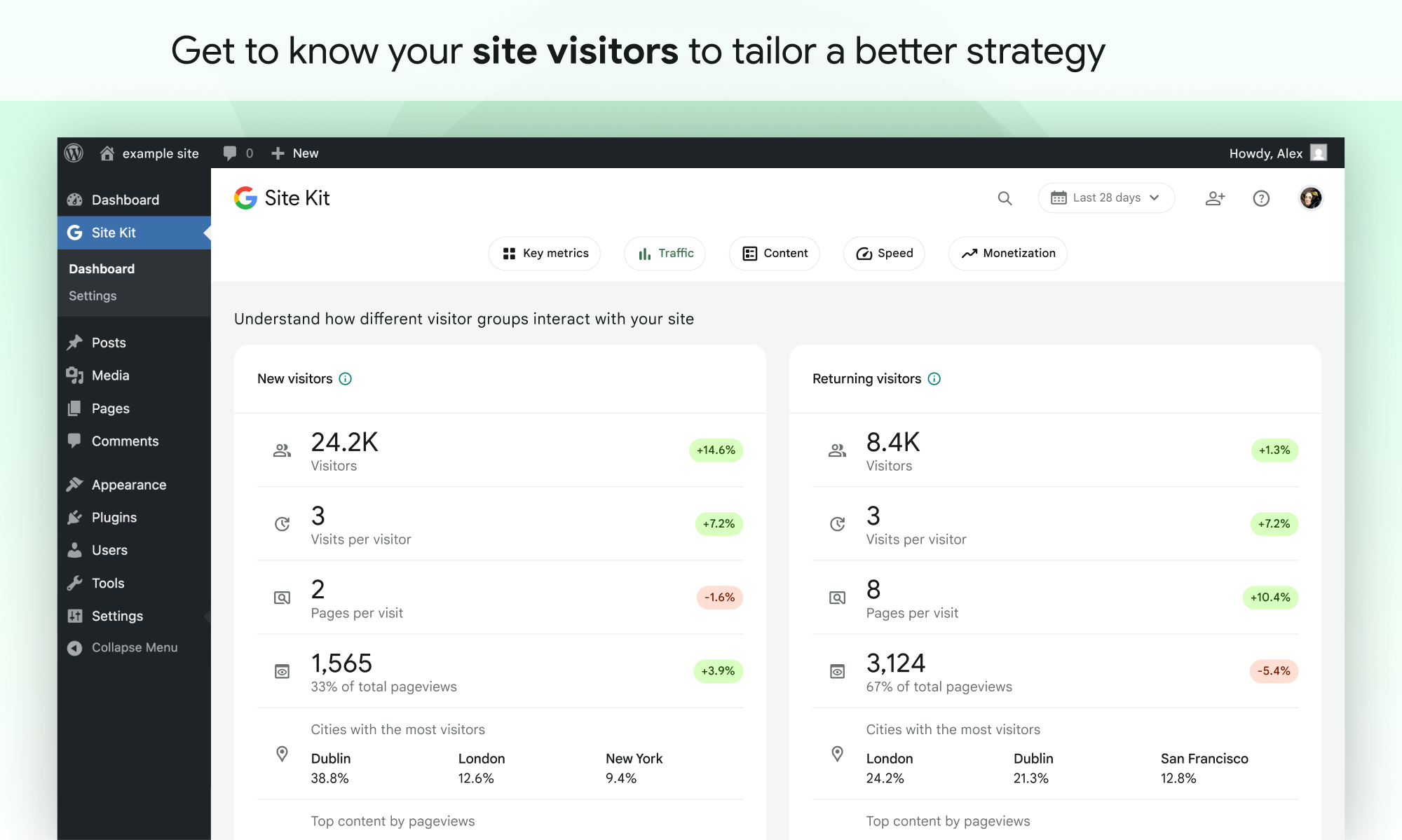
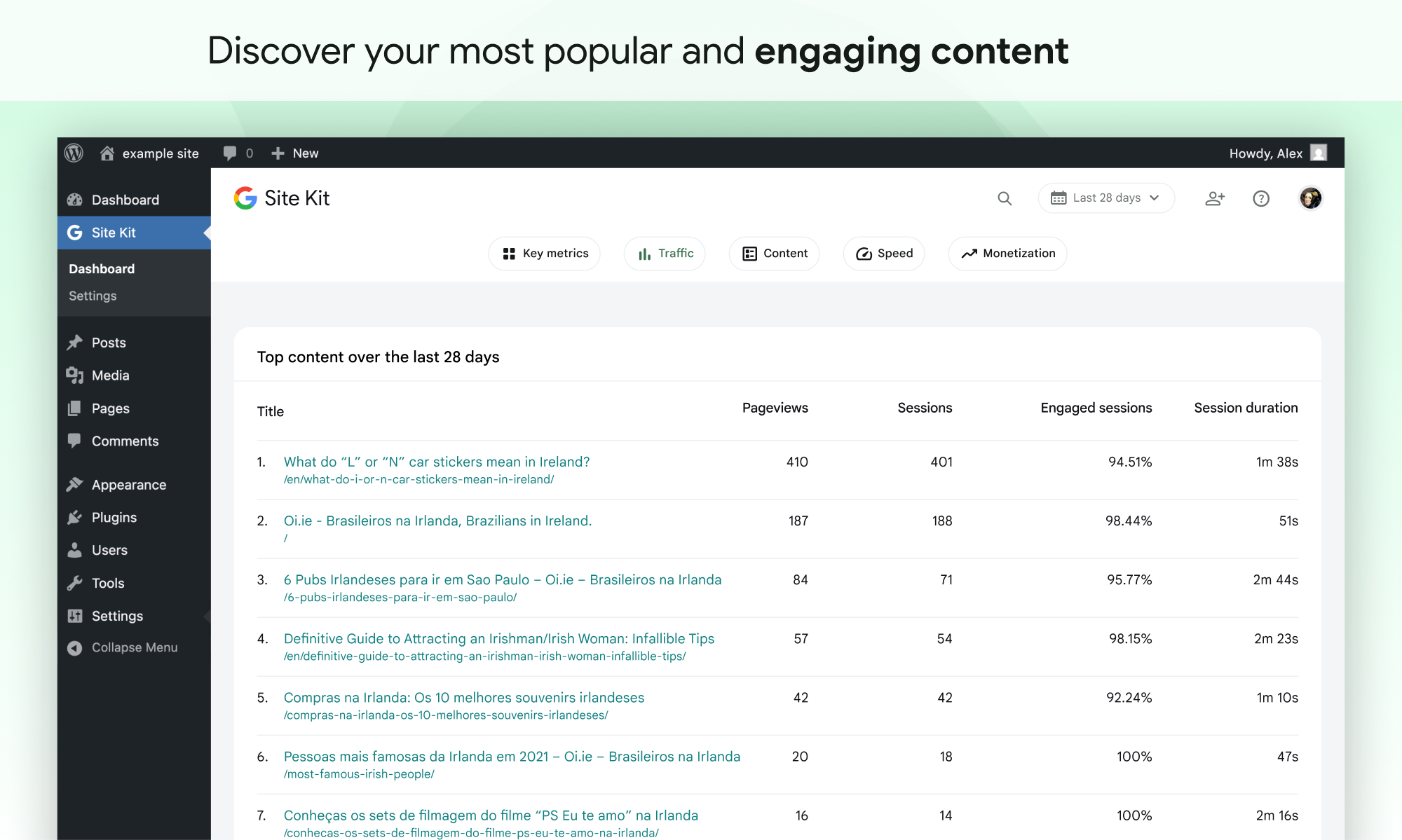
Site Kit is the official WordPress plugin from Google for insights about how people find and use your site. Site Kit is the one-stop solution to deploy, manage, and get insights from critical Google tools to make the site successful on the web. It provides authoritative, up-to-date insights from multiple Google products directly on the WordPress dashboard for easy access, all for free.
A trazer as melhores ferramentas do Google para o WordPress
Site Kit includes powerful features that make using these Google products seamless and flexible:
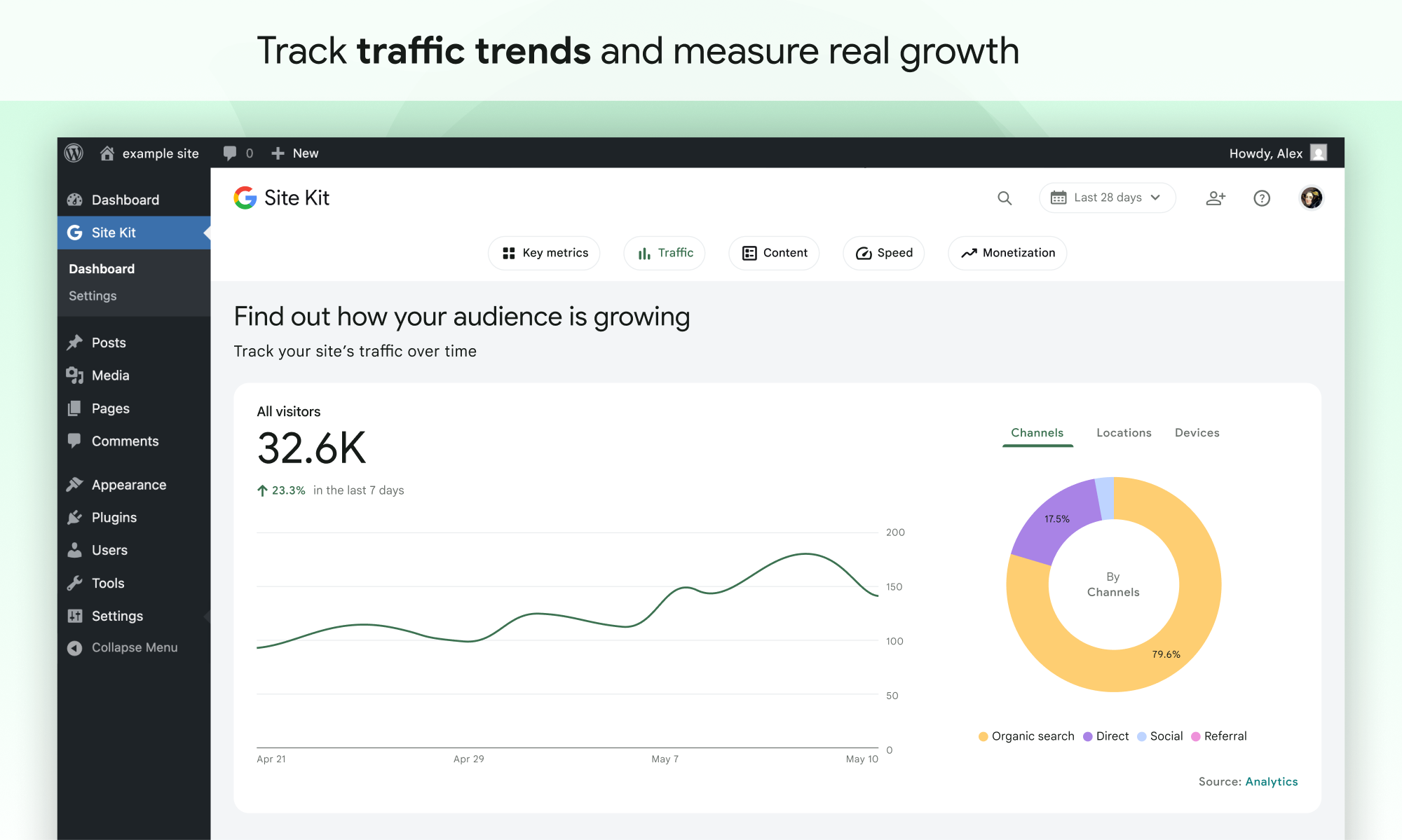
- Easy-to-understand stats directly on your WordPress dashboard
- Official stats from multiple Google tools, all in one dashboard
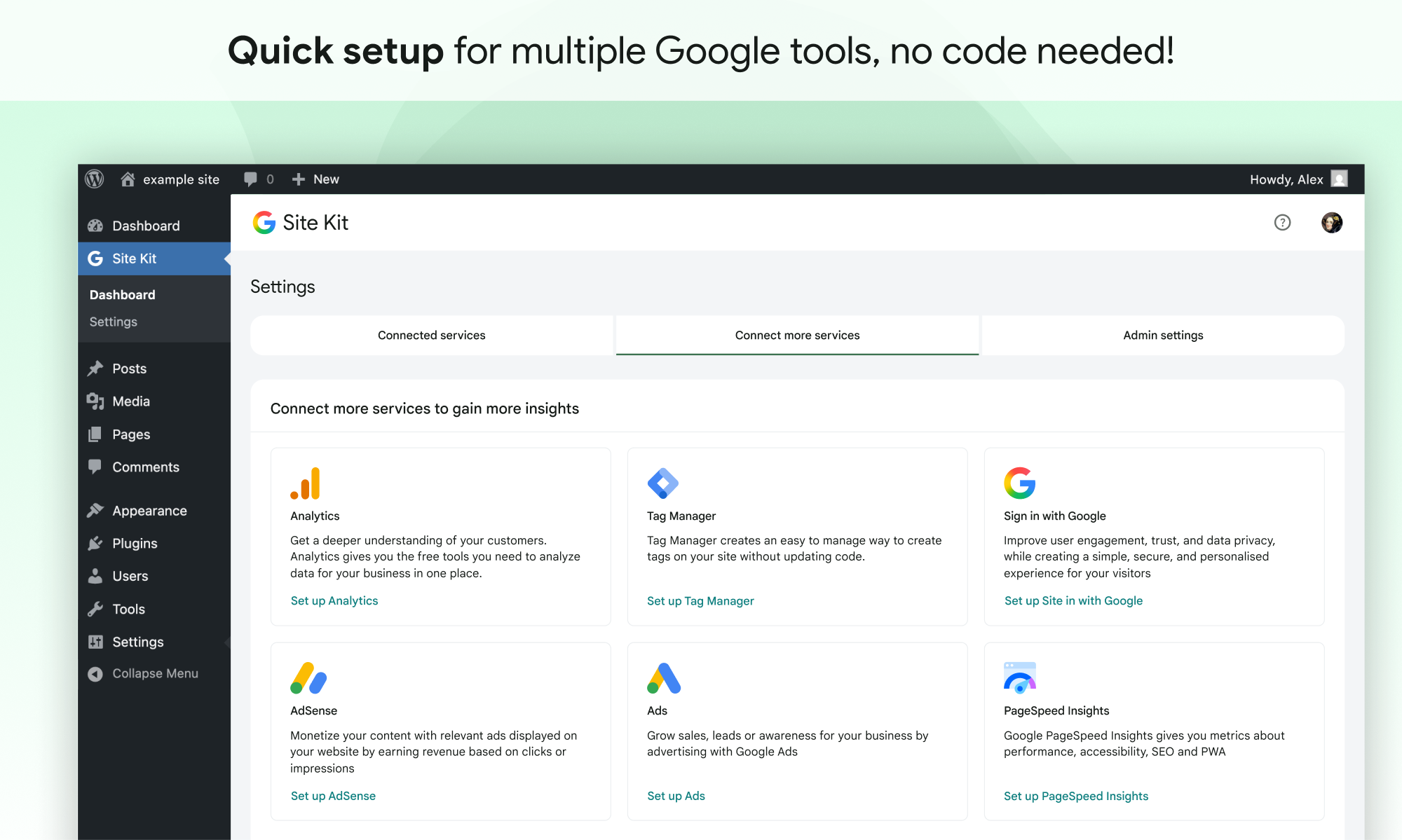
- Quick setup for multiple Google tools without having to edit the source code of your site
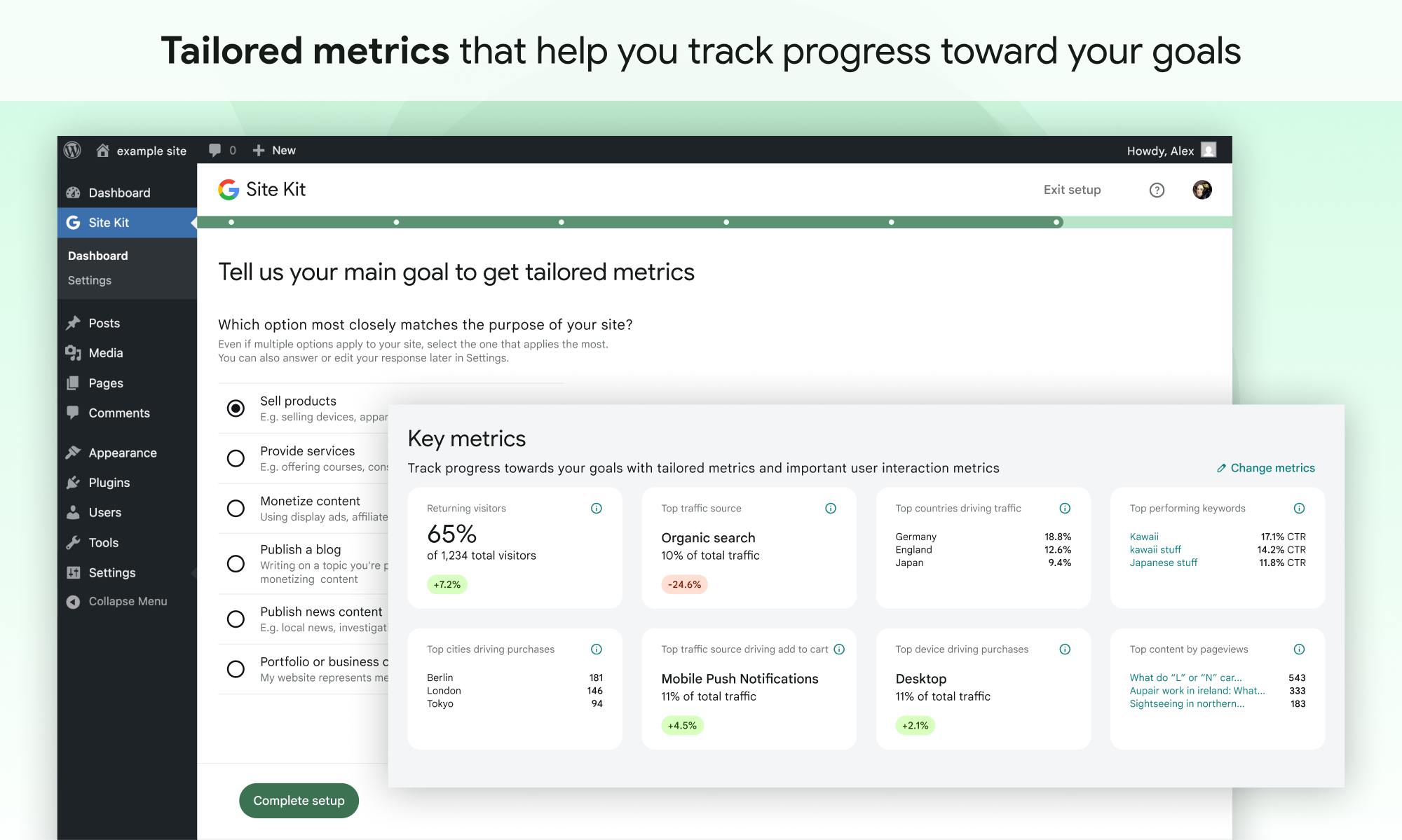
- Metrics for your entire site and for individual posts
- Easy-to-manage, granular permissions across WordPress and different Google products
Supported Google tools
Site Kit shows key metrics and insights from different Google products:
- Search Console: Understand how Google Search discovers and displays your pages in Google Search. Track how many people saw your site in Search results, and what query they used to search for your site.
- Analytics: Explore how users navigate your site and track goals you’ve set up for your users to complete.
- AdSense: Keep track of how much your site is earning you.
- PageSpeed Insights: See how your pages perform compared to other real-world sites. Improve performance with actionable tips from PageSpeed Insights.
- Tag Manager: Use Site Kit to easily set up Tag Manager- no code editing required. Then, manage your tags in Tag Manager.
- Sign in with Google: Allows visitors to sign up and log in to your site with their existing Google account.
- Reader Revenue Manager: Helps you grow, retain, and engage your site visitors via subscription, contribution, newsletters, surveys, and custom prompts.
- Ads: Get customers and sell more with targeted traffic from Google Ads.
Ecrãs
Instalação
Note: Make sure that your website is live. If your website isn’t live yet, Site Kit can’t show you any data. However, if you have a staging environment in addition to your production site, Site Kit can display data from your production site in the staging environment. Learn how to use Site Kit with a staging environment.
Installation from within WordPress
- Visit Plugins > Add New.
- Search for Site Kit by Google.
- Install and activate the Site Kit by Google plugin.
- Connect Site Kit to your Google account. If there are multiple WordPress admins, keep in mind that each admin must connect their own Google account in order to access the plugin.
Instalação manual
- Upload the entire
google-site-kitfolder to the/wp-content/plugins/directory. - Visite plugins.
- Activate the Site Kit by Google plugin.
- Connect Site Kit to your Google account. If there are multiple WordPress admins, keep in mind that each admin must connect their own Google account in order to access the plugin.
Depois da activação
- Visite o novo menu Site Kit.
- Siga as instruções de instalação.
- Go to the main Site Kit dashboard which already displays key metrics from Search Console.
- Connect additional Google tools under Site Kit > Settings. Learn more about which tools are right for you.
Perguntas frequentes
Para mais informações, visite o site oficial do Site Kit.
-
O Site Kit é gratuito?
-
The Site Kit plugin is free and open source, and will remain so. Individual Google products included in Site Kit are subject to standard terms and fees (if any) for those products.
-
What are the minimum requirements for Site Kit?
-
In order to successfully install and use Site Kit, your site must meet the following requirements:
- WordPress version 5.2+
- PHP version 7.4+
- Modern browser – Internet Explorer is not supported
- Is publicly accessible – it isn’t in maintenance mode, accessible only via password, or otherwise blocked
- REST API is available – Site Kit must be able to communicate via REST API with Google services. To ensure that the REST API is available for your site, go to Tools > Site Health.
-
Why is my dashboard showing “gathering data” and none of my service data?
-
It can take a few days after connecting Site Kit to a Google service for data to begin to display in your dashboard. The “gathering data” message typically appears when you’ve recently set up a Google service (i.e. just created a new Analytics account) and/or your site is new, and data is not yet available for display.
If you are still seeing this message after a few days, feel free to get in touch with us on the support forum.
-
Why aren’t any ads appearing on my site after I connected AdSense?
-
If you’re new to AdSense when you connect via Site Kit, your new AdSense account and your site will need to be manually reviewed and approved for ads by the AdSense team. Ads will not display until your account and site have been approved. Check out this guide for more information about the approval process and timeline.
You can check your approval status in Site Kit by going to Settings > Connected Services > AdSense and clicking Check your site status. This link will direct you to AdSense. If you see “Ready,” your account and site have been approved and should be displaying ads. If you see “Getting ready…,” your account and site are still under review and your site will not display ads until they have been approved.
If Site Kit has successfully added the AdSense snippet to your site and your account and site have been approved, but your site is still not showing ads, contact the AdSense Help Center for assistance.
You can find more information on how Site Kit works with AdSense in our Managing AdSense guide.
-
Is Site Kit GDPR compliant?
-
When using Site Kit, site owners are responsible for managing notice and consent requirements – including GDPR requirements – as described in Google’s Terms of Service.
By default, Site Kit does anonymize IP addresses upon activation of the Google Analytics module. This setting can be turned off in Site Kit > Settings > Analytics > Anonymize IP addresses.
There are a number of third-party plugins that allow you to block Google Analytics, Tag Manager, or AdSense from capturing data until a visitor to the site consents. Some of these work natively with Site Kit by providing plugin-specific configurations. You can find out more about these by visiting our GDPR compliance and privacy page.
-
Where can I get additional support?
-
Please create a new topic on our WordPress.org support forum. Be sure to follow the support forum guidelines when posting.
Avaliações


Contribuidores e programadores
“Site Kit by Google – Analytics, Search Console, AdSense, Speed” é software de código aberto. As seguintes pessoas contribuíram para este plugin:
Contribuidores
“Site Kit by Google – Analytics, Search Console, AdSense, Speed” foi traduzido para 32 locales. Obrigado aos tradutores pelas suas contribuições.
Traduza o “Site Kit by Google – Analytics, Search Console, AdSense, Speed” para o seu idioma.
Interessado no desenvolvimento?
Consulte o código, consulte o repositório SVN, ou subscreva o registo de alterações por RSS.
Registo de alterações
1.192.0
Enhanced
- Add “Recent activity” to dashboard. See #14131.
- Add surveys for the Recent activity tab of the Traffic card. See #14046.
- Update the “Visitor groups” feature’s setup checklist copy. See #13988.
- Add an existing CTA screen to Reader Revenue Manager express setup. See #13979.
- Update the “Learn more” link in the Site Goals notices about a missing plugin to point to the Supported plugins guide. See #13966.
- Add shared components for AI-generated content: an AI icon, an AI disclosure line and AI text with bold support. See #13931.
- Add a builder that prepares the Site Goals insight data from the Site Goals reports. See #13929.
- Use the new
/feedbackservice endpoint for recording votes and related feedback. See #13880. - Add support for the new
/feedback/service endpoint. See #13879. - Add triggers for Reader Revenue Manager newsletter sign-up surveys. See #13862.
- Add error and gathering data states for Fresh Data. See #13849.
- Add a notice to the Site Goals widgets that lets admins switch Plugin Conversion Tracking back on when it is turned off after the breakdown was in use. See #13832.
- Add a survey CTA preview for Reader Revenue Manager express setup. See #13730.
- Add the
SurveyQuestionRowcomponent, which displays a question for the Reader Revenue Manager survey setup and is visible in Storybook. See #13727. - Show Reader Revenue Manager’s own setup success notice in the Feature Discovery Hub. See #13505.
- Add success notice when using new Feature Discovery Hub setup. See #13356.
- Add setup for the Key Metrics feature in the Feature Discovery Hub. See #13348.
- Enable setting up the Reader Revenue Manager newsletter sign-up feature from the Feature Discovery Hub. See #13345.
- Enable setup for the Visitor Groups feature on the Feature Discovery Hub. See #13344.
- Fix the Site Goals breakdown success and error notice titles so the ecommerce-only and combined breakdowns show the correct wording. See #13177.
- Add a setting and a
googlesitekit_show_wp_dashboard_widgetfilter to turn off the Site Kit widget on the WordPress dashboard. See #12799.
Fixed
- Fix bug that could cause “Recent activity” to show “gathering data” state when no visits were detected. See #14099.
- Improve text truncation in “Engagement & outcomes” tile. See #14097.
- Show publication CTA display names when listing them, don’t show deleted CTAs, and update how CTAs are shown in Site Health. See #13908.
- Keep the “Publication” field in Reader Revenue Manager express setup within the step’s width when a publication has a long name. See #13886.
- Require reader consent on the newsletter sign-up form when “Require consent before signing up” is turned on during express setup. See #13884.
- Prevent Reader Revenue Manager express setup errors from displaying outside of the step they’re related to. See #13873.
- Fix the Reader Revenue Manager express setup flow for publications connected through the original setup. See #13871.
- Fix a bug where some dates, such as the PDF report period and the dates of the Top recent trending pages widget, were one day early for a few days after the clocks moved forward for daylight saving time. See #13857.
- Improve settings migration handling during upgrades. See #13829.
- Improve accessibility of collapsible dashboard widget headers so screen readers read their titles and the Space key toggles them. See #13511.
- Improve VoiceOver text for Site Goal tooltips. See #13510.
- Fix bug with Dashboard Sharing reset when PageSpeed Insights is disconnected. See #13433.
- Fix the help menu so that opening it closes the tooltip pointing to it. See #12071.
- Fix the dashboard not scrolling to the Speed section when opened from the PageSpeed Insights settings link. See #8373.
- Fix Site Kit screens crashing or formatting numbers and dates in the wrong language for some site and user languages. See #7589.